
Bank statement converter: PDF to Google Sheets or Excel
Describe the transactions you want once. AI Snip pulls every one of them from every statement into your sheet, one row per transaction, from any bank, digital or scanned, with every row linked back to the statement.
100 free credits every month · no card required
Why most bank statement converters get it wrong
A bank statement is a print layout that happens to contain a table. Generic PDF to spreadsheet tools see the layout, not the table, so a description that wraps onto a second line becomes two transactions, a running balance gets mistaken for an amount column, and the page header repeats in the middle of your data. Then you download a file, import it into Sheets, and fix it by hand.
Sheetminer runs inside Google Sheets instead, and AI Snip reads the statement against the fields you asked for rather than its print layout. You get one transaction per row, with the columns you defined in the order you defined them. There is no download-and-import step, and nothing leaves the spreadsheet where the reconciliation happens.
From PDF statement to spreadsheet in three steps
- 1
Add your statements
Open Sheetminer in your Google Sheet and add a statement, or a month of them, from Google Drive, a shared drive, or straight from your device. There is no separate converter site and no file to download afterwards.
- 2
Create a transactions template
Open AI Snip, start an empty template and describe what you need, such as: "Only the list of transactions: date, description, debit, credit and balance. Nothing else." Sheetminer builds the template for you, including a Transactions list that returns one row per transaction. You can also start from the built-in Bank statement template. Building fields is free, and the template saves automatically for next month.
- 3
Run it and insert
Run the template across every statement you added and check each value against its highlighted line on the statement. Preview the table, then insert: one row per transaction lands at the cell you selected, each linked back to the line it came from.
Every row traces back to the statement
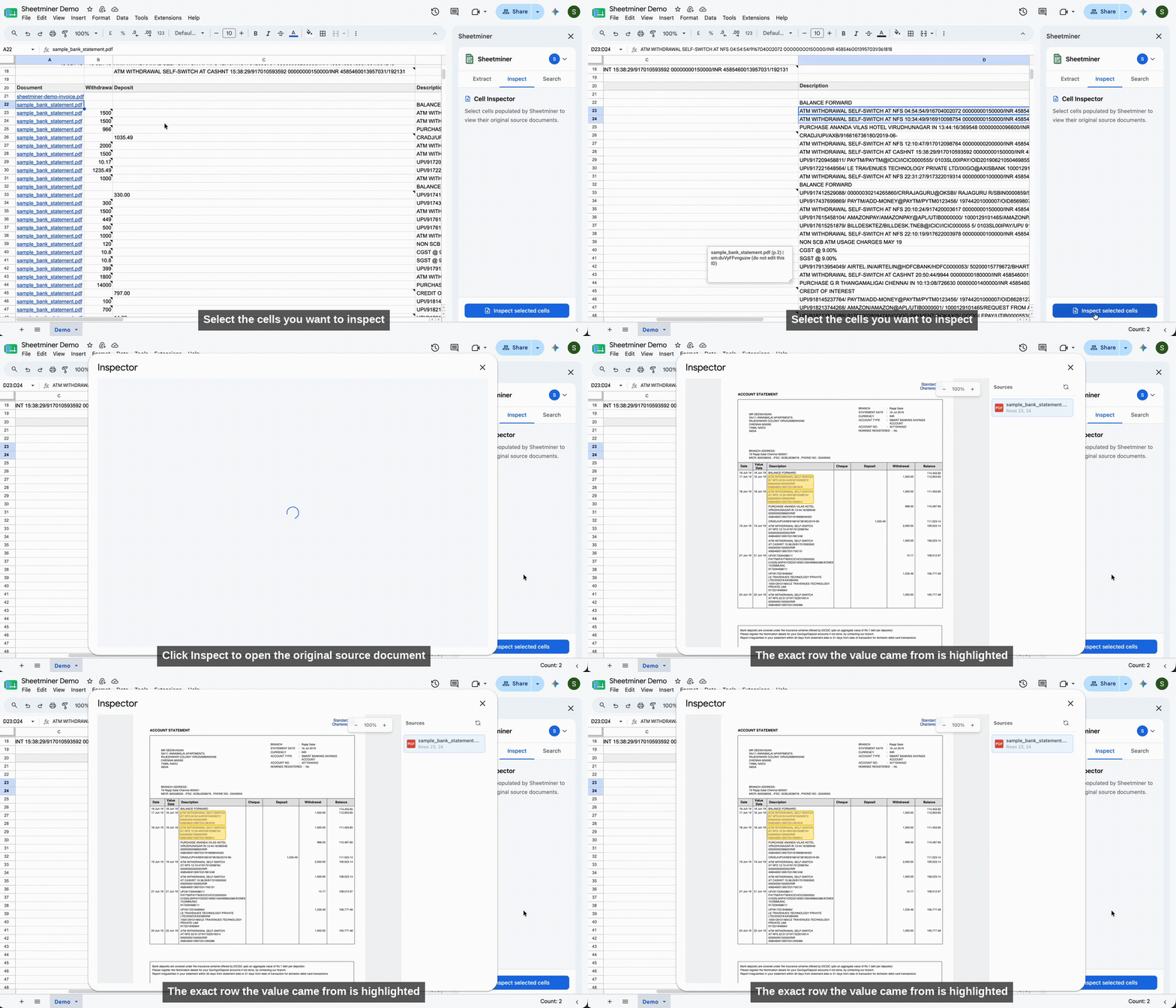
A converted CSV is a snapshot with no memory of where it came from. In Sheetminer, click any cell and open Inspect to see the original statement, zoomed to the exact line the value was read from.
When a transaction is questioned six months later, by a client, a reviewer or an auditor, the answer is one click away rather than a hunt through a Drive folder. Anyone who can edit the sheet can check a number without asking the person who ran the extraction.
Works with statements from any bank
There is no per-bank parser to wait for. Your template describes the fields, not the layout, so a new bank works the same way as the one you convert every month.
- PDF statements
- Digital downloads from online banking, or scanned paper statements.
- Images
- PNG and JPG, including photos of printed statements.
- Multi-page
- Up to 50 pages and 20MB per statement.
- Languages
- English and the major European languages, read as-is.
Full limits in Supported Documents & Languages.
Data & Security
What happens to your documents, and what Sheetminer can actually see. Full detail in our Privacy Policy.
Instant processing
Extractions complete in seconds, with results delivered straight into your spreadsheet cells.
Industry-standard encryption
Data is encrypted and hosted on Google Cloud Platform in the EU/EEA. Sheetminer Limited is a registered Irish company and complies with GDPR.
Limited permission scope
Sheetminer only accesses the specific files you select and the spreadsheet you currently have open, not your entire Google Drive.
Frequently asked questions
Can I convert a bank statement PDF to Google Sheets for free?
Yes. Every Sheetminer account gets 100 free credits a month with no card required. Processing a statement costs 2 credits per page, and each AI Snip run costs 1 credit per 2 pages, so a typical 4-page statement costs about 10 credits. That covers roughly 10 statements a month.
Which banks does Sheetminer work with?
Any bank. Your AI Snip template describes the fields you want, such as date, description and amount, not where a particular bank prints them. So the same template reads statements from different banks, and a new bank or a changed layout does not mean starting again.
Does it work on scanned bank statements?
Yes. Scanned PDFs and photos of printed statements are read with OCR in the same way as digital PDFs. On a scan it is worth running the totals check, because OCR can misread a character inside an amount on a poor-quality image.
How do I check the conversion is complete?
Take the opening balance printed on the statement, add the credits and subtract the debits from your converted rows, and compare the result to the printed closing balance. If they match, no rows were lost, duplicated or misread. AI Snip can pull the opening and closing balances into the sheet so the check is a single formula.
Is my bank statement data secure?
Sheetminer only accesses the files you select and the spreadsheet you have open, not your whole Drive. Your original statement is never modified, and one picked from Google Drive stays where it is. Sheetminer keeps an encrypted copy on Google Cloud Platform in the EU so it can show you the source in Inspect, and deletes it when you delete the document or your account.
Can I convert a bank statement PDF to Excel or CSV?
Yes. Once the rows are in Google Sheets, use File > Download to save them as a CSV or an Excel file for bookkeeping or accounting software.
Comparing methods? Read the step-by-step guide to converting a bank statement PDF to Excel or Google Sheets, then reconciling it in Google Sheets.
Stop retyping bank statements.
Install Sheetminer from the Google Workspace Marketplace and convert your first statement today. 100 free credits a month, no card required.
Install for free