
Receipt scanner & OCR for Google Sheets
Phone photos, faded till receipts, handwritten ones: AI Snip reads each receipt you add and writes the merchant, date, tax and total into your sheet, with every value linked back to the receipt it came from.
100 free credits every month · no card required
Your receipts belong in your spreadsheet, not another app
Most receipt scanner apps keep your expenses in their own database. To use the numbers in a budget, a client recharge or a tax return, you export a CSV and paste it into a spreadsheet, then lose the link to the receipt behind each line.
Sheetminer does receipt OCR inside Google Sheets. AI Snip reads each receipt against the fields you described, by meaning rather than position, so one template works for supermarket, fuel, restaurant and taxi receipts alike. The values land straight in your columns, next to the categories and formulas you already use.
From receipt photo to spreadsheet in three steps
- 1
Add your receipts
Open Sheetminer in your Google Sheet and add receipts from Google Drive, a shared drive, or straight from your device. Phone photos (JPG or PNG) and scanned PDFs both work, and you can add a whole month at once.
- 2
Describe the fields
Open AI Snip and describe what you need in plain English, such as: "For each receipt: merchant, date, payment method, tax and total." Sheetminer turns that into template fields you can review and edit. Setting up fields is free, and the template saves automatically for next month.
- 3
Run it and insert
Run the template across every receipt you added and check each value against its highlighted spot on the image. Preview the table, then insert: one row per receipt, each value linked back to where it was read.
New to AI Snip? See AI Snip & Templates in the docs.
How to scan receipts into Google Sheets
OCR is only as good as what it can see. A few habits make the difference on the receipts that usually go wrong.
Phone photos
Lay the receipt flat on a plain, darker surface and shoot from directly above, with the whole receipt in frame. Turn the flash off if it causes glare on glossy paper. Long receipts are fine in a single tall photo; if you need two, add both and check the total on the second one.
Faded paper
Thermal receipts fade with heat and time, so photograph them as soon as you get them. For ones that are already faint, use good daylight rather than a lamp, and don't push the contrast up so far that light digits disappear. Then open the review step and compare each highlighted value with the image before inserting.
Handwritten receipts
Neat block capitals read best. Give the AI Snip field a specific description, such as "the amount written next to Total", so it knows which handwritten number to take. On a hard-to-read receipt, check the total and date against the highlighted image in the review step before you insert.
Every expense traces back to its receipt
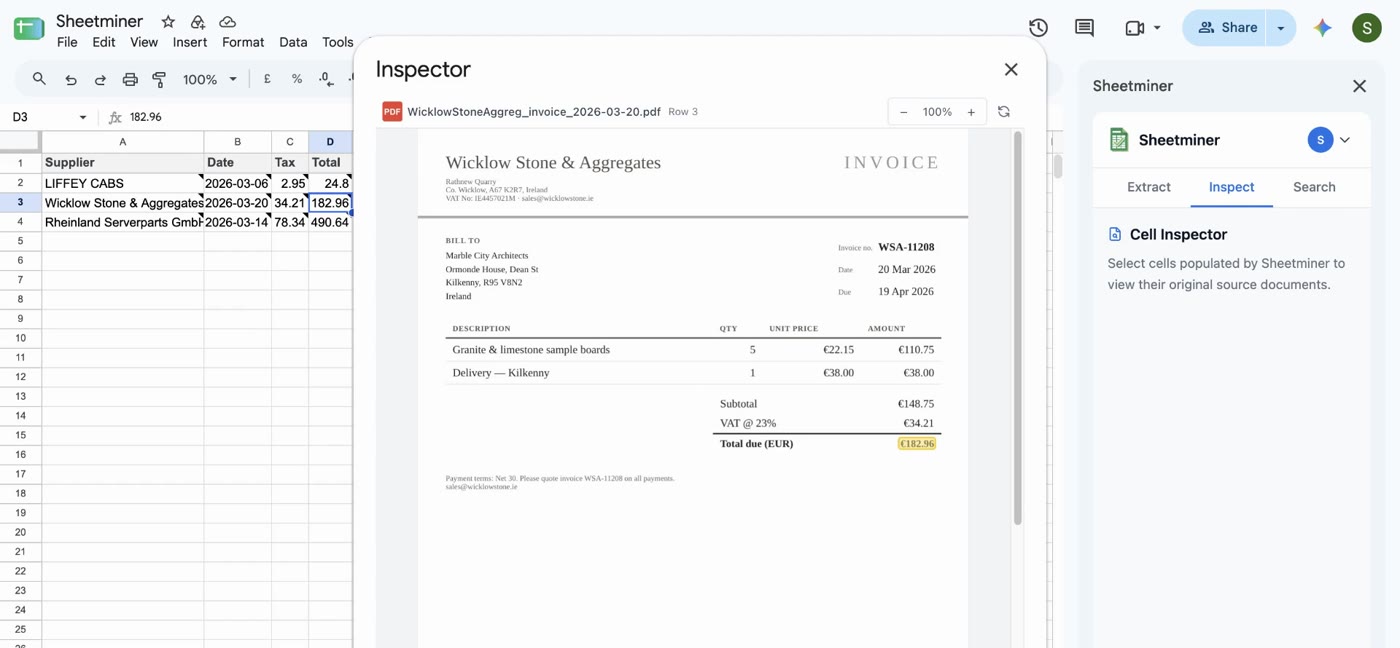
A typed-in expense has no memory of where it came from. In Sheetminer, select any cell and open Inspect to see the original receipt, with the exact spot the value was read from highlighted.
When a claim is queried by a manager, a client or the tax office, you click the cell instead of searching your camera roll. The same goes for supplier paperwork: see invoice OCR for Google Sheets.
Works with the receipts you actually have
There are no per-merchant layouts to build. Your template describes the fields, so a new shop's receipt works the same way as the ones you get every week.
- Phone photos
- JPG and PNG straight from your camera roll, including receipts photographed at an angle or on a busy background.
- Faded thermal paper
- Older till receipts where the print has started to fade. Check the highlighted values on the weakest ones.
- Handwritten receipts
- Taxi, market and tradesperson receipts written by hand, read with OCR in the same pass as printed ones.
- Scanned PDFs
- A stack of receipts scanned to PDF, up to 50 pages and 20MB per document.
Full limits in Supported Documents & Languages.
Data & Security
What happens to your documents, and what Sheetminer can actually see. Full detail in our Privacy Policy.
Instant processing
Extractions complete in seconds, with results delivered straight into your spreadsheet cells.
Industry-standard encryption
Data is encrypted and hosted on Google Cloud Platform in the EU/EEA. Sheetminer Limited is a registered Irish company and complies with GDPR.
Limited permission scope
Sheetminer only accesses the specific files you select and the spreadsheet you currently have open, not your entire Google Drive.
Frequently asked questions
Is there a free receipt scanner for Google Sheets?
Yes. Every Sheetminer account gets 100 free credits a month with no card required. Processing a receipt costs 2 credits per page, and each AI Snip run costs 1 credit per 2 pages (minimum 1), so a single-image receipt costs 3 credits. That covers around 30 receipts a month. Building or editing fields is free.
Can I scan receipts into Google Sheets from my phone?
Take the photos with your phone camera and save them to Google Drive, for example with the Drive app's upload button. Then open your Google Sheet, start Sheetminer and add the photos from Drive. Each receipt becomes a row in the sheet.
What receipt data can it extract?
Whatever you describe. Common fields are merchant, date, payment method, subtotal, tax or VAT, tip and total, plus an optional list of items. You can add your own, such as an expense category, a project code or the card's last four digits.
Does it read faded or handwritten receipts?
Yes. Photos and scanned PDFs are read with OCR, including handwritten receipts. Accuracy depends on how legible the receipt is, so on a faded or hand-written one use the review step to check each highlighted value before it goes into the sheet.
Can I use it as an expense tracker?
Yes. Add a category column to the template, run it on each month's receipts, and summarize the sheet with SUMIFS or a pivot table. Because every row links back to its receipt, you can check any expense at month end without hunting for the photo. To match receipts against your bank or card statement, see our guide to bank statement reconciliation in Google Sheets.
Is my receipt data secure?
Sheetminer only accesses the files you select and the spreadsheet you have open, not your whole Drive. Your original receipt is never modified, and one picked from Google Drive stays where it is. Sheetminer keeps an encrypted copy on Google Cloud Platform in the EU so it can show you the source in Inspect, and deletes it when you delete the document or your account.
Matching receipts to your card or bank statement? Read how to reconcile bank statements in Google Sheets.
Stop retyping receipts.
Install Sheetminer from the Google Workspace Marketplace and scan your first receipts into Google Sheets today. 100 free credits a month, no card required.
Install for free