
Edit Before Inserting
How to check and correct snipped data before it goes into Google Sheets™: the Edit screen for Text, Table and Form Snip, editing cells, leaving out rows and columns, and resetting edits.
Last updated
Text, Table and Form Snip have two buttons under the document: Edit and Insert into Sheet. Insert into Sheet inserts your selection straight away. Edit first opens a full-width screen that shows exactly what will be inserted, so you can correct values and choose what goes in. Sum Snip has no Edit button: you correct the total in the right-hand panel (see Sum Snip).
What do I need before editing?
- A selection in the Snip extract window: text drawn with Text Snip, one or more tables with Table Snip, or fields with Form Snip.
How do I check and correct data before inserting it?
- Make your selection in the Text, Table or Form tab.
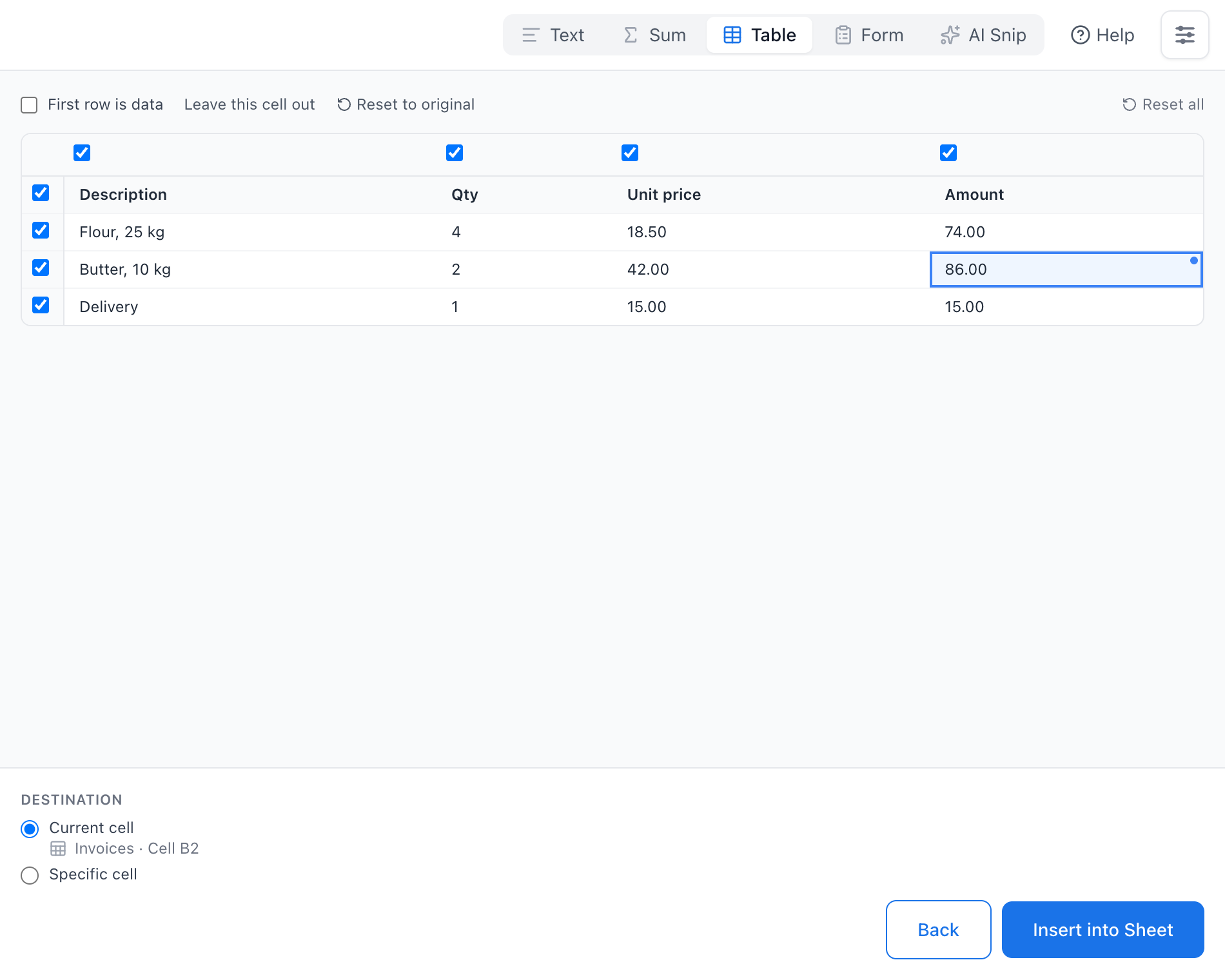
- Click Edit, next to Insert into Sheet. The Edit screen opens across the whole window.
- Correct values, and choose which rows, columns and cells to insert (see the sections below).
- Check Destination at the bottom: the sheet and cell the data goes to.
- Click Insert into Sheet. Or click Back to return to the document without inserting. Your selection is kept, but edits made on the Edit screen are not: opening Edit again starts from the selection.
What should I see after inserting from the Edit screen?
- The data in the sheet exactly as the Edit screen showed it, without the cells, rows and columns you left out.
- Every inserted value still linked to its source in the document, including values you edited. Values you typed into an empty Form Snip field have no source to link to.
- For edited values, Inspect shows what the document said next to your value, for example “B4 edited from: 1,250.00”. See Inspect.
How do I edit a cell?
Table and Form Snip show a grid of what will be inserted. Form Snip shows one row per document, labeled with the document’s name, under a header row of your field names.
- Click a cell to change it. Press Enter to save, or Esc to cancel.
- Use the arrow keys to move between cells, or Tab to go to the next one.
- Edit a header cell to rename the column.
- An edited cell shows a blue dot. Hover it to see the original value (“Edited from: 1,250.00”).
- With an edited cell selected, click Reset to original to undo that cell. Click Reset all to undo every edit.
- A value that can’t be read as a number, in a column of numbers, gets a red outline: “This column holds numbers, but this isn’t one”. Correct it, or it is inserted as text.
Text Snip shows the extracted text in a large text box instead of a grid. Type to change it. A blue dot next to Extracted value means you changed it, and Reset to original puts back the text Sheetminer read.
How do I leave out rows, columns or cells?
- Untick the checkbox at the start of a row, or at the top of a column, to leave it out. Tick it again to include it.
- To leave out one cell, click it, then click Leave this cell out. Click Include this cell to bring it back.
Left-out cells are shown struck through and are not inserted. If you leave out every cell, Insert into Sheet is disabled.
What does “First row is data” do?
In Table Snip, Sheetminer treats the first row of the table as headers. If your table has no header row, tick First row is data. The first row is then inserted and checked like any other row. The option shows only when the table has a header row, and it resets each time you open Edit.
Does editing use pages?
No. Editing and inserting are free. Pages are only counted when a document is processed (see Pages & Usage).
How do I fix messages on the Edit screen?
| Message | What it means | What to do |
|---|---|---|
| This column holds numbers, but this isn’t one | The cell is in a column of numbers, but its value can’t be read as a number. | Correct the value, or leave it: it is inserted as text. |
| Insert into Sheet is grayed out | Every cell is left out, or the text is empty. | Tick at least one row, column or cell, or type some text. |
| Enter a target cell, e.g. Sheet2!B5 | Destination is set to Specific cell, but no address is entered. | Enter an address, or choose Current cell. |
| Google Sheets was busy, so the table wasn’t inserted. Try again in a moment. | Google Sheets™ did not accept the write. | Wait a few seconds and click Insert into Sheet again. |
AI Snip has its own review step instead of Edit: see AI Snip & Templates.