
Form Snip
How to read the same fields from many fixed-layout documents into Google Sheets™ with Form Snip: draw each field once, anchor it to a label, and insert one row per document.
Last updated
Form Snip reads the same fields from every open document. You draw a box over each value once, on one document, and Sheetminer reads the same spot on all the others, one row per document. It suits documents that share a layout, such as one supplier’s invoices, payslips, or a standard form. Each value keeps a link to its source.
What do I need before using Form Snip?
- The Sheetminer add-on installed in Google Sheets™, with edit access to the spreadsheet.
- Two or more processed documents with the same layout. Form Snip works on one document too, but it is built for many.
- Documents that have text Sheetminer could read. If the Form tab is grayed out with the tooltip “No OCR data available for this document”, processing did not read any text.
How do I read the same fields from many documents?
- Open the sidebar: click Extensions → Sheetminer → Open.
- In the Extract tab, tick every document you want to read.
- Click the Extract button at the bottom of the sidebar, then click the Form tab.
- Under Template, keep New form, or pick a saved template from Choose a template. Type a name over “Untitled form” to save it under that name.
- Draw a box over the first value you want, for example the invoice number. It becomes a field named “Field 1”. Draw a box for each other value (“Draw another box to add a field.”).
- For each field, type a Field name (it becomes the column header) and pick a Field type: Text, Number or Date.
- Check Results. It shows one row per document and a count, for example “11 of 12 values found”. Click a row to show that document and check what was read.
- If the layout shifts between documents, add an anchor to the fields that move. See How do I make a field follow a label when the layout shifts?
- Tick Include a Document column to add each document’s name as the first column.
- Click Insert into Sheet, or click Edit to check and correct the values first. See Edit before inserting.
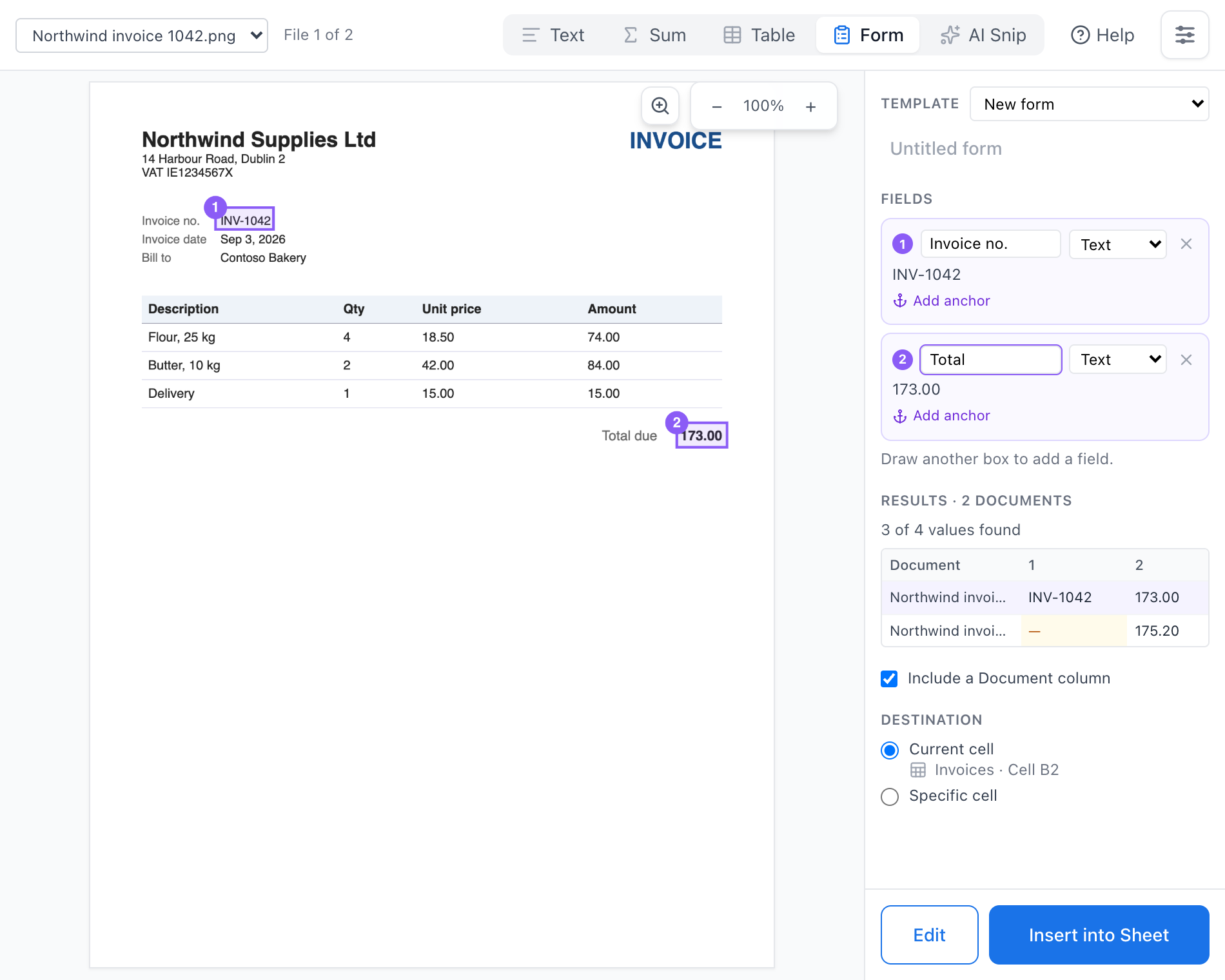
On the Form tab, draw a box over each value and name the field. The same boxes are read from every open document, one row each.
What should I see after inserting?
- The message “Data inserted into sheet”.
- A header row with your field names (and Document first, if you ticked it), then one row per document.
- Number fields inserted as numbers. Text and Date fields inserted as written in the document. A field with nothing in its box on a document leaves that cell empty.
- Every value linked to the exact place it came from. Select a cell, open the Inspect tab, and click Inspect selected cells.
To add the rows to a table you already have, click a cell in that table before you insert. The button changes to Add to table, and a preview lets you match the table’s columns to your fields. See How do I add rows to a table I already have?
How do I make a field follow a label when the layout shifts?
Add an anchor. An anchor is a printed label near the value, such as “Total due” or “Invoice no.”. On each document, Sheetminer finds that label and moves the box by the same distance the label moved. Use it when a value isn’t always in exactly the same place, for example a total that sits lower on invoices with more line items.
- Under the field, click Add anchor (“Pick a nearby label so this field still reads the right spot when the layout shifts”).
- Draw a box around the label, as the message says: “Draw a box around a nearby label for Total, e.g. “Total due”.” Click Cancel to stop.
- The label’s text shows under the field. Click its × (Remove anchor) to remove it.
- Check Results again on documents where the value moved.
How Sheetminer finds the label:
- It looks for the label’s words in order. Case and punctuation don’t matter, and a small misread in a word of 4 or more characters is accepted (for example “Tota1” for “Total”).
- A label that contains a number must match that number exactly. “Invoice 1234” does not match “Invoice 1235”. Pick a label without numbers that change between documents.
- It searches the page the label was on first, then the other pages, so a field can follow its label to another page.
- If the label is printed more than once, it uses the one nearest where you drew it.
- If the label isn’t found, the box is read where you drew it, and the value shows “Anchor not found; read where the box was drawn”.
How do I reuse fields on another batch of documents?
Templates save automatically. The status next to the name shows Saving…, then Saved. Next time, pick the template from Choose a template under Template. In the same browser, the template you used last opens by default. Templates are saved to your Sheetminer account, so they are available in any spreadsheet.
How many pages does Form Snip use?
None. Form Snip reads the text Sheetminer got when it processed your documents, without AI, so it uses no pages. Pages are only counted once, when each document is processed (see Pages & Usage).
How do I fix Form Snip messages?
| Message | What it means | What to do |
|---|---|---|
| Nothing in this box on this document | No text was found inside the field’s box on that document. The cell shows ”—” in Results and is left empty when inserted. | Click the row to see the document. If the value moved, add an anchor, or redraw the box larger. |
| Anchor not found; read where the box was drawn | The anchor label wasn’t found on that document, so the box was read where you drew it. The value shows in amber. | Check the value. If it is wrong, pick a different label, without numbers that change. |
| There’s no text in that box. Draw it around a printed label. | The anchor box has no text in it. | Draw the anchor box around a printed label. |
| Couldn’t read this document | The document’s text could not be loaded. | Click Retry. |
| 2 documents couldn’t be read and will be left out | Some documents failed to load and won’t be inserted. | Click Retry on each, or insert without them. |
| Couldn’t save | The template didn’t save. | Keep working: it saves again on your next change. |
| Google Sheets was busy, so the table wasn’t inserted. Try again in a moment. | Google Sheets™ did not accept the write. | Wait a few seconds and click Insert into Sheet again. |
| Sheet “Name” was not found. | The Specific cell address names a tab that does not exist. | Correct the tab name, or create the tab first. |
When should I use Form Snip instead of AI Snip?
Use Form Snip when your documents share a layout: it is fast, free and reads exactly the spot you drew. Use AI Snip when layouts differ between documents, for example invoices from many suppliers. For a whole table use Table Snip, and for a single value use Text Snip.