
Inspect
How to trace any cell Sheetminer filled back to its source document in Google Sheets™ with Inspect: steps, what you see, pages, and fixes for every message.
Last updated
Inspect shows where a value in your sheet came from. Select a cell that Sheetminer filled, and the source document opens at the exact place the value was read, highlighted. It is the audit trail for every number Sheetminer writes.
What do I need before using Inspect?
- The Sheetminer add-on installed in Google Sheets™, with edit access to the spreadsheet.
- Cells that Sheetminer filled with Text Snip, Sum Snip, Table Snip or AI Snip, or cells you linked with Search.
- The cell’s note left in place. Sheetminer links each cell through a note such as “invoice.pdf (p.2) | sm:… (do not edit this ID)”. If the note is deleted or the ID is changed, Inspect cannot find the source.
How do I see the source of a cell in Google Sheets™?
- Open the sidebar: click Extensions → Sheetminer → Open.
- In the sheet, select the cell, or a range of cells, you want to check.
- Click the Inspect tab at the top of the sidebar. It shows Cell Inspector and “Select cells populated by Sheetminer to view their original source documents.”
- Click Inspect selected cells.
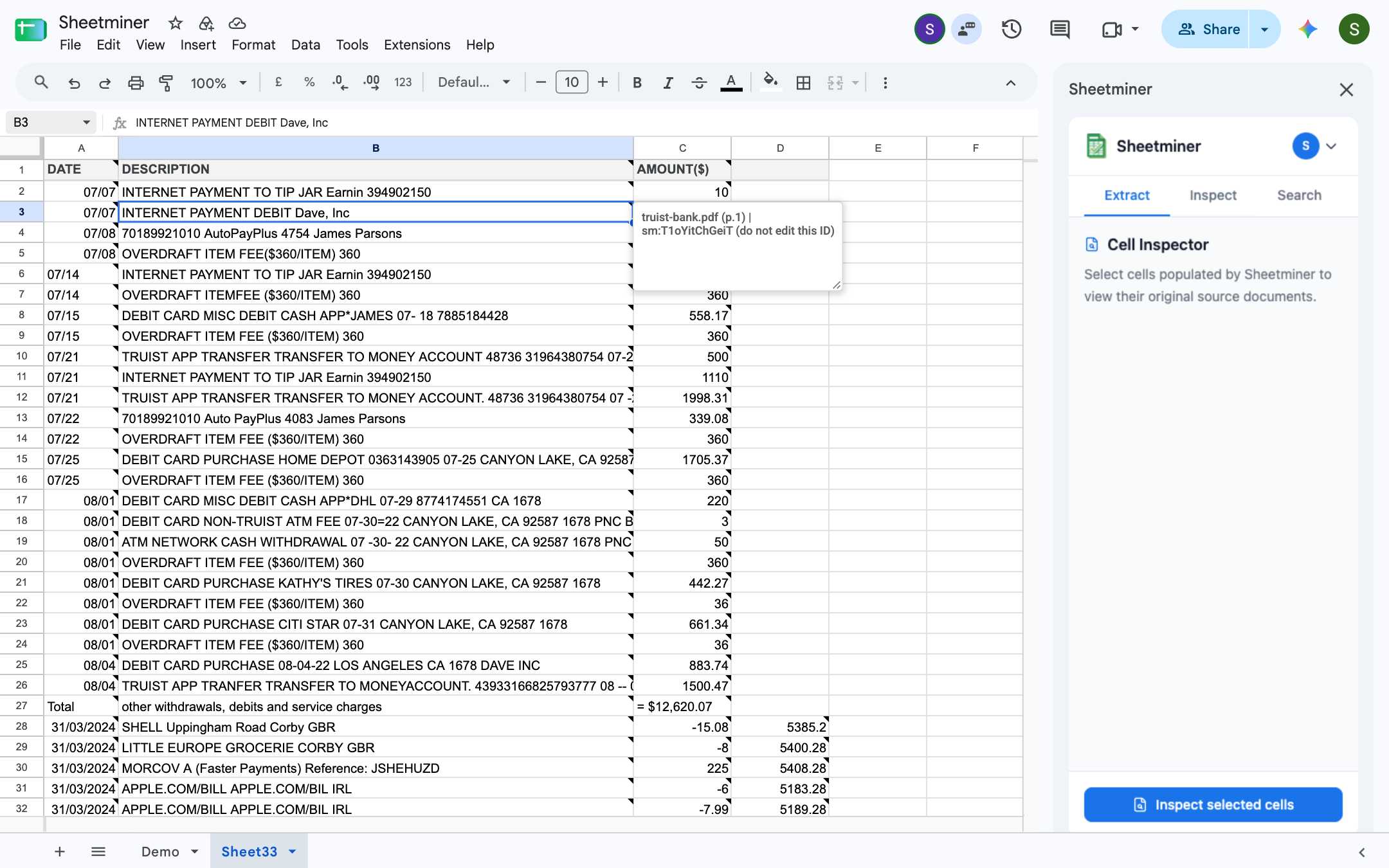
Select a cell Sheetminer filled, open the Inspect tab and click Inspect selected cells.
What should I see after clicking Inspect selected cells?
- The Inspector window, with the source document scrolled to the page the value came from.
- The area the value was read from, highlighted in the document.
- At the top, the document name and the sheet rows it supplied, for example “Row 4” or “Rows 4, 5, 6”.
- If you edited a value before inserting it, a line such as “B4 edited from: 1,250.00” that shows what was read from the document.
Use the zoom controls at the top to zoom in or out. Click a highlight in the document to select that cell.
How do I inspect several cells at once?
Select a range before you click Inspect selected cells. If the cells come from more than one document, a dropdown at the top lists each document. Pick one to switch the viewer to it. Cells with no source are grouped under No source.
Inspect reads up to 100 cells at a time. For a larger selection, it shows, for example, “(first 100 of 250)”. Select a smaller range to see the rest.
How do I inspect a different cell without closing the Inspector?
Leave the Inspector window open. Select new cells in the sheet, then click the refresh button at the top right of the window (Load current selection).
Can I change the source document from Inspect?
No. Inspect is read-only. If a value is wrong, correct it in the sheet, or run the extraction again.
How many pages does Inspect use?
None. You can inspect cells as often as you like at no cost. Pages are only counted when a document is processed (see Pages & Usage).
How do I fix Inspect messages?
| Message | What it means | What to do |
|---|---|---|
| No Cell Inspected | No cell was selected when the window opened. | Select a cell or range in the sheet and click Inspect selected cells. |
| No Source Found. These cells don’t have any associated document metadata. | The selected cells were not filled by Sheetminer, or their note was deleted or edited. | Select cells that Sheetminer filled. To link existing values, use Search. |
| File Not Accessible | The source file could not be found. | If the file still exists in Google Drive, click Grant Access and select it in the window that opens. |
| Access Denied | Sheetminer does not have permission to open the source file. | Click Grant Access and select the file in the window that opens. |
| Could Not Load File | Something went wrong loading the file. | Click Load current selection to try again. |
| No source file linked | The document has no linked Google Drive file, so it cannot be shown. | Upload the document again and re-run the extraction. |
| Open the Picker Again | You closed the access window without selecting the file. | Click it and select the file shown. |
| Request Access in Drive | Your Google account cannot see the file in Google Drive. | Click it to open the file in Drive and request access from the owner. |
| Authentication failed. Please reload the Inspector. | Your sign-in expired. | Close the Inspector window and open it again from the Inspect tab. |
Who can inspect cells on a shared sheet?
Anyone who can edit the spreadsheet and open Sheetminer on it. They do not need to be the person who ran the extraction. See Sharing & permissions.
What happens to Inspect if a document is deleted?
When you delete a document from the sidebar, cells sourced from it can no longer be viewed in the Inspector. Click Undo on the “1 document removed.” message to bring the document and its cell links back. See Sharing & permissions.