
Getting Started
Install Sheetminer, open the sidebar in Google Sheets™, upload your first PDF or image, and run your first extraction: steps, what you see, pages, and fixes for common messages.
Last updated
Sheetminer is an add-on for Google Sheets™. It copies data from PDFs, scans and images into your sheet, and links each value to the exact place it came from in the document. This page walks you from install to your first linked cell.
What do I need before I start?
- A Google account and a spreadsheet in Google Sheets™ that you can edit. If you can only view it, Sheetminer shows “You need edit access to this spreadsheet to use Sheetminer. Ask the owner to share it with you as an editor.”
- A PDF, PNG or JPG document, up to 20MB, and up to 50 pages for a PDF. See Supported documents.
- Enough pages left to process the document. Each page of the document counts as one page. Every account gets 50 free pages a month. See Pages & Usage.
How do I install Sheetminer?
Follow the steps on the install page. Sheetminer installs from the Google Workspace Marketplace. When Google asks for permissions, grant all of them. Sheetminer cannot run with only some of them.
How do I open the Sheetminer sidebar?
- Open a spreadsheet in Google Sheets™.
- Click Extensions → Sheetminer → Open.
The sidebar opens on the right. It has three tabs at the top: Extract, Inspect and Search. The first time you open it, you see “New to Sheetminer? The 2-minute Getting Started guide walks you through adding your first document and running your first extraction.” Click Open guide to come back to this page.
How do I extract data from my first document?
- In the Extract tab, add a document in one of three ways:
- Click Computer and pick a file from your device.
- Click Add files and pick a file in the “Choose files from Google Drive” window.
- Drag files onto the box that says “Drag files here, or browse from:”.
- The Review files window opens. Check the file list and the line that shows the file and page count, for example “1 file · 3 pages”. To add more, use “Add more files from Google Drive or your computer.”
- Click Process 3 pages (the button shows your page count). Its pages are counted now, when the document is processed.
- Wait for processing to finish. The document shows Uploading, then Processing. The footer shows “1 document currently processing. Please wait for processing to complete.” When it is done, the document shows its upload date instead.
- Make sure the document’s checkbox is ticked in the Documents list. New uploads are ticked for you.
- In the sheet, click the cell where you want the value to go.
- Click the Extract button at the bottom of the sidebar. The Snip extract window opens on the Text tab.
- In the document preview, drag a box over the text you want (“Draw a box over the text you want to extract”).
- Check the value under Extracted value. Click Edit if you need to correct it. Destination shows the sheet and cell it will go to.
- Click Insert into Sheet.
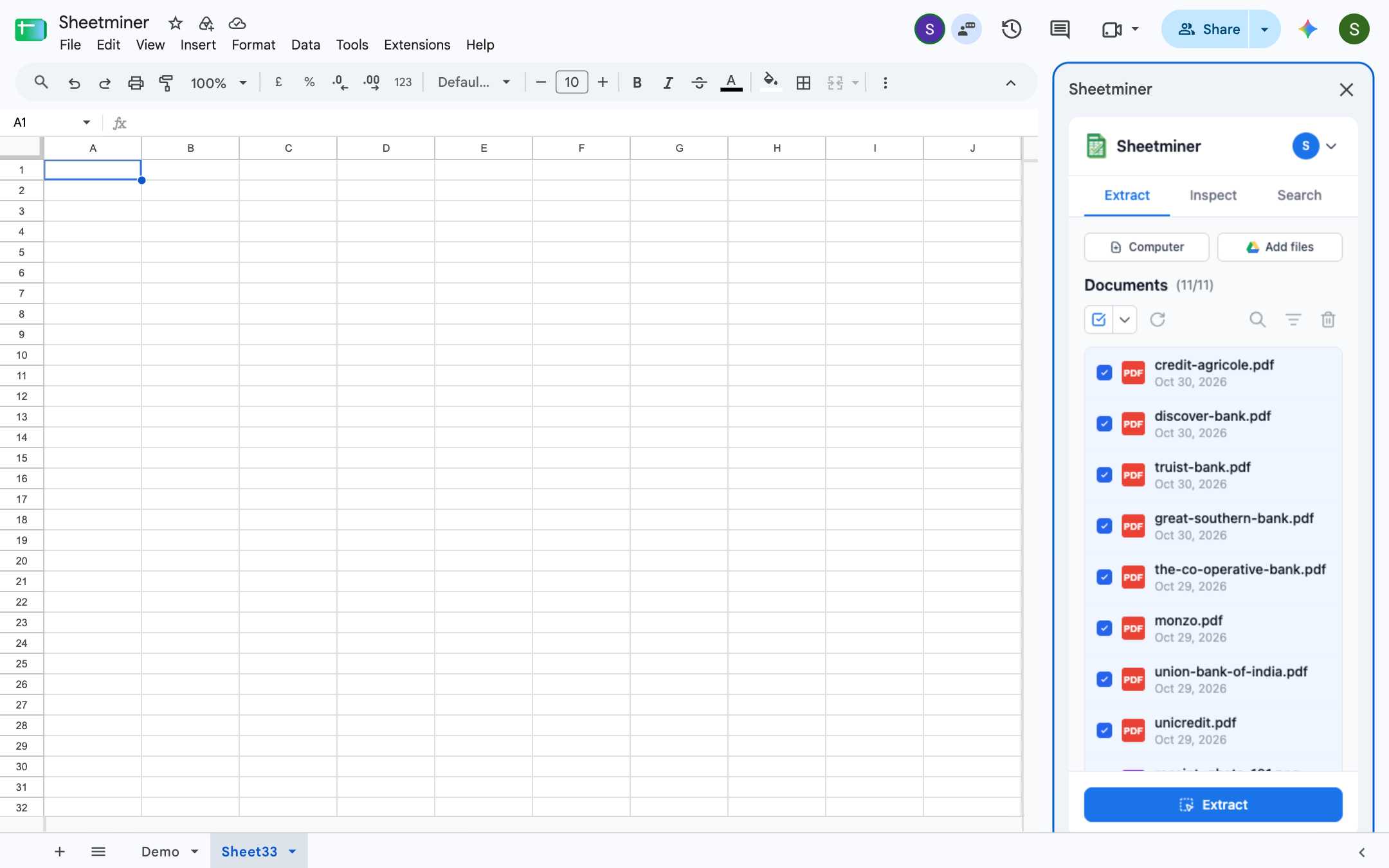
Open the sidebar: Extensions → Sheetminer → Open. The Extract tab lists the documents added to this spreadsheet.
What should I see after my first extraction?
- The value in the cell you selected. Text Snip shows no confirmation message; the value appearing in the cell is the confirmation.
- A note on the cell with the document name and page, followed by an ID marked “(do not edit this ID)”. This note is the link to the source.
How do I check where a value came from?
- Click the cell you just filled.
- Open the Inspect tab in the sidebar.
- Click Inspect selected cells.
The Inspector window opens with the source document at the exact place the value came from, highlighted. See Inspect.
How many pages does getting started use?
Only processing uses pages: one for each page of the document, counted once when you click Process in the Review files window. AI Snip is included. Text Snip, Sum Snip, Table Snip, Inspect and Search do not use pages. See Pages & Usage and the pricing page.
How do I fix messages I see while getting started?
| Message | What it means | What to do |
|---|---|---|
| You need edit access to this spreadsheet to use Sheetminer. Ask the owner to share it with you as an editor. | You can only view or comment on this spreadsheet. | Ask the owner for edit access, then reopen the sidebar. |
| Sheetminer needs all its permissions to work | Some permissions were not granted when you installed. | Click Grant permissions, accept every permission, then click I’ve granted them, continue. |
| Upload documents to get started | There are no documents on this spreadsheet yet. | Click Computer or Add files. |
| Select documents to continue | No document is ticked. | Tick at least one document in the Documents list. |
| 1 document currently processing. Please wait for processing to complete. | A ticked document is still processing. | Wait. The Extract button appears when processing finishes. |
| Selected documents failed to process. You can delete them and try again. | Processing failed. The document shows Processing failed or the reason. | Delete the document and upload it again. |
| Out of pages | The document was not processed because you have no pages left. | Wait for your monthly reset, buy extra pages, or see the pricing page. |
| This needs 6 pages, but you have 2 left. | The files in Review files have more pages than you have left. | Remove some files, buy extra pages, or click See plans. |
| Not a PDF, PNG or JPG | The file type is not supported. | Convert the file to PDF, PNG or JPG. |
| File is 24.5MB, maximum is 20MB | The file is larger than 20MB. | Compress or split the file. |
| PDF has 64 pages, maximum is 50 | The PDF has more than 50 pages. | Split the PDF into parts of 50 pages or fewer. |
| ”invoice.pdf” has already been uploaded | A document with the same name is already on this spreadsheet. | Click Rename in Review files to give it a new name, or remove it. |
| Browser settings may block the Drive picker | Your browser’s tracking protection can stop the Google Drive window from working. | Follow the steps shown, or click Computer to upload from your device instead. |
| Google blocked Sheetminer for this account. … | You are signed into several Google accounts, or your Workspace admin has not allowed Sheetminer. | Click How to fix this. Open the sheet in the account where Sheetminer is installed, or ask your admin. |
What should I read next?
- Text Snip to copy single values.
- Sum Snip to add up numbers.
- Table Snip to copy whole tables.
- Form Snip to read the same fields from many documents with the same layout.
- Edit before inserting to correct values before they go into your sheet.
- AI Snip to pull the same fields from many documents.
- Search to link values already in your sheet to their sources.