
Sum Snip
How to add up a column of numbers from a PDF or scanned image into a Google Sheets™ cell with Sum Snip: steps, what you see, pages, and fixes for every error message.
Last updated
Sum Snip adds up every number inside a box you draw on a PDF or image and writes the total into one cell of your sheet. The cell keeps a link to the box, so you can check later what was added.
What do I need before using Sum Snip?
- The Sheetminer add-on installed in Google Sheets™, with edit access to the spreadsheet.
- A PDF, PNG or JPG document (Word and Excel files are not supported; see Supported documents).
- At least one document uploaded in the Extract tab of the sidebar and finished processing. A document that is still processing shows “1 document currently processing. Please wait for processing to complete.” in the sidebar footer.
- Numbers that Sheetminer could read. Sum Snip only uses text that processing found on the page.
How do I add up numbers from a PDF or scan into Google Sheets™?
- In your sheet, select the cell where the total should go.
- Open the sidebar: click Extensions → Sheetminer → Open.
- In the Extract tab, tick the document that has the numbers.
- Click the Extract button at the bottom of the sidebar. The Snip extract window opens on the Text tab.
- Click the Sum tab.
- Drag a box over the numbers only, for example the amounts in the Withdrawal column of a bank statement. Leave out the column header and any “Total” label. Words that touch the box are included.
- Check the total under Extracted value and the addition under Formula in the right-hand panel.
- To change where the total goes, set Destination in the right-hand panel (or click the Preferences button to the right of the mode tabs). Current cell inserts at the cell selected in the sheet. Specific cell inserts at an address such as
Sheet2!B5. - Click Insert into Sheet.
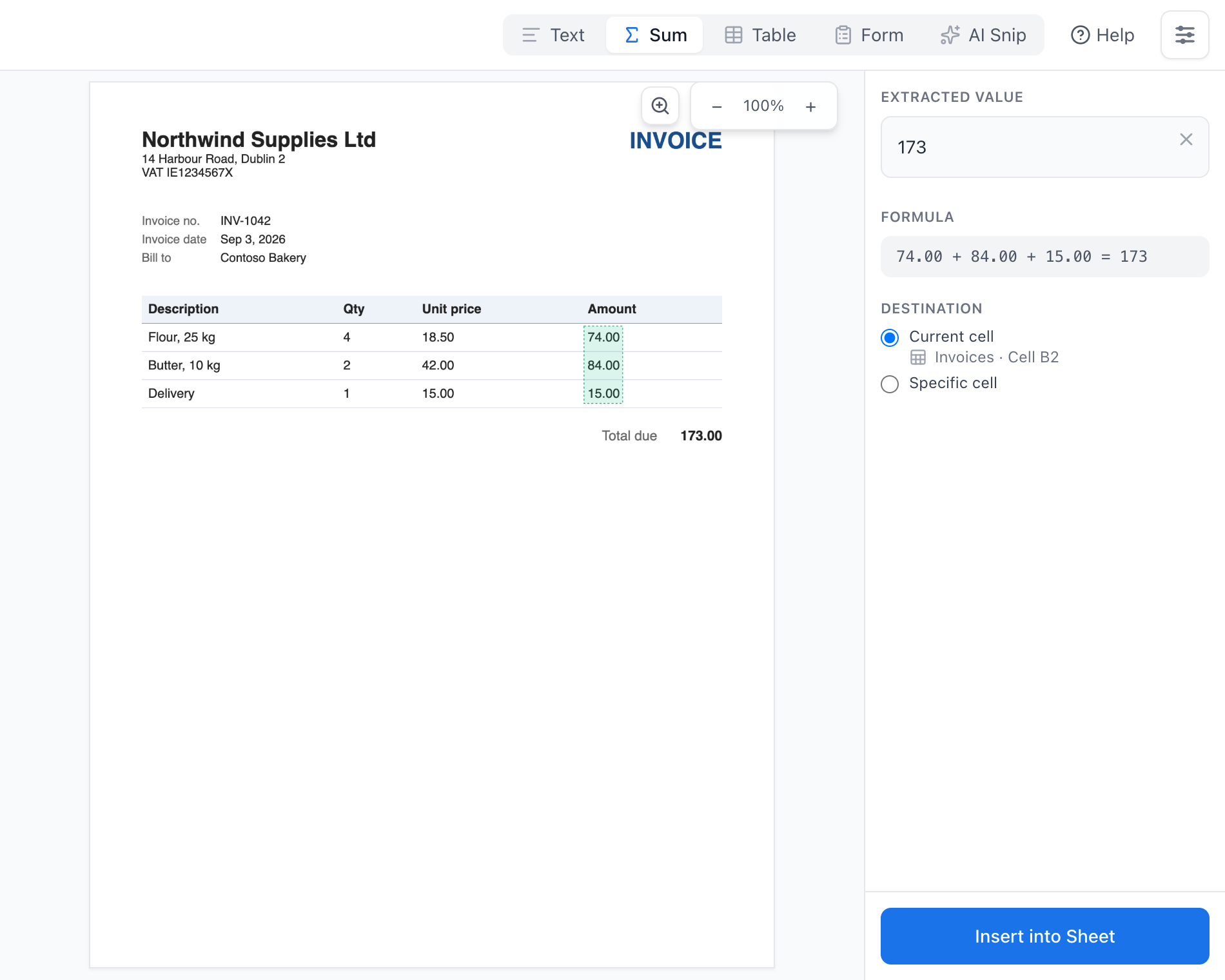
Click the Sum tab and drag a box over the numbers only. Each number added is highlighted, the total shows under Extracted value, and the numbers added under Formula. Then click Insert into Sheet.
What should I see after inserting a total?
- Before inserting, the total under Extracted value and every number that was added under Formula, for example
120.00 + 45.50 + 9.99 = 175.49. If the box holds one number, you see “Detected: 120.00” instead. - After inserting, the total in the destination cell as a real number, so you can use it in formulas. If you selected a range, it goes into the top-left cell of the range.
- The right-hand panel clears and shows “Draw a box over the numbers you want to sum”, ready for the next box. The window stays open.
- The cell linked to its source. Select the cell, open the Inspect tab at the top of the sidebar, and click Inspect selected cells to see the box you drew in the document.
Sum Snip does not show a “Data inserted into sheet” message. Check the cell to confirm the insert.
What can be inside a Sum Snip box?
Every word in the box must be one of these, or Sum Snip will not add anything:
- A number, such as
1,234.56,1.234,56,1 234,56,$45.00or12%. Currency symbols ($, €, £, ¥), thousands separators and a trailing % are ignored. - A negative number, written as
-45.00or(45.00). - A currency symbol or currency code on its own, such as
$,EURorUSD. These are skipped. - Punctuation on its own. This is skipped.
Anything else stops the sum: labels such as “Total”, dates such as 07/25/2018, and codes such as 859466-103. Sum Snip does not skip these. It shows a “Cannot sum” message so you can redraw the box.
Sheetminer works out whether a comma or a point is the decimal separator from the numbers in the box. If it can’t tell (for example, the box only has whole numbers), it uses your spreadsheet’s locale.
How do I check which numbers were added?
Read the Formula line under the total. It lists every number in the box, top to bottom and left to right, joined with ”+”. If a number is missing or extra, click the × in the Extracted value box (Discard selection) and draw the box again.
Can I change the total before inserting it?
Yes. Type over the total under Extracted value. If what you type is a number, it is inserted as a number. If not, it is inserted as text. When you insert an edited total, the Inspect tab shows a line such as “B2 edited from: …” followed by the text that was inside your box.
Sum Snip has no Edit button, unlike Text, Table and Form Snip (see Edit before inserting). You edit the total in the right-hand panel.
How do I read small print before drawing a box?
Use the controls at the top right of the document preview. Click − or + to zoom (the current zoom shows as a percentage). Turn on Magnifier to see an enlarged view of the area under your pointer.
How many pages does Sum Snip use?
None. Pages are counted once, when a document is processed after you upload it (see Pages & Usage). After that, you can run Sum Snip on the document as many times as you like at no cost.
How do I fix Sum Snip error messages?
| Message | What it means | What to do |
|---|---|---|
| Cannot sum: selection contains a non-numeric word “Total” | The box has numbers, plus one word that is not a number. | Draw a tighter box that leaves out the word. |
| Cannot sum: selection contains non-numeric words “Total”, “Tax”, “Fee” and 2 more | The box has numbers, plus several words that are not numbers. Up to three are named. | Draw a tighter box around the numbers only. |
| Cannot sum: “Total” isn’t a number | The box has one word and it is not a number. | Draw the box over the numbers instead. |
| Cannot sum: “Date”, “Description” aren’t numbers | The box has no numbers, only words. | Draw the box over the numbers instead. For text, use Text Snip. |
| No numbers found in selection | The box only has currency symbols, currency codes or punctuation. | Draw the box over the amounts. |
| No message. The box disappears after you draw it. | No readable text was found inside the box. | Draw a bigger box that fully covers the numbers. If the page is a poor scan, upload a clearer copy. |
| Draw a box over the numbers you want to sum | Shown on hover over a grayed-out Insert into Sheet button. There is nothing to insert yet. | Draw a box over some numbers first. |
| Preparing snips… | The document’s text is still loading. | Wait a few seconds, then draw your box. |
| No OCR data found in document | Sheetminer has no text for this document. | Check that processing finished in the sidebar. If it did, upload the document again. |
| Failed to load document | The document could not be opened. | Close the window and click Extract again. |
| Failed to load document content | The document’s text could not be loaded. | Close the window and click Extract again. |
| Please ensure you are logged in | You are not signed in to Sheetminer. | Close the window, reopen the sidebar, sign in, and click Extract again. |
| Authentication failed. Please reload the add-on. | Your sign-in could not be confirmed. | Click Reload add-on. If that doesn’t help, close the sidebar and reopen it from Extensions → Sheetminer. |
| ”X1” isn’t a valid cell address. Try something like Sheet2!B5. | The Specific cell address is not valid. | Enter an address such as B5 or Sheet2!B5. Your total is kept, so you can click Insert into Sheet again. |
| Sheet “Name” was not found. | The Specific cell address names a tab that does not exist. | Correct the tab name, or create the tab first. |
| Cell B5 has a dropdown that only accepts certain values. Pick another cell and insert again. | The destination cell has data validation that blocks the total. | Choose a different cell. Your total is kept, so you can insert again. |
| Google Sheets was busy, so the table wasn’t inserted. Try again in a moment. | Google Sheets™ did not accept the write. This message also appears for Sum Snip when you use Specific cell. | Wait a few seconds and click Insert into Sheet again. |
If you click Insert into Sheet with Current cell set and nothing appears in the sheet, select a cell in the sheet and draw the box again.
What is Sum Snip good for?
Subtotals from columns that hold only numbers: deposits and withdrawals on bank statements, line-item amounts on invoices, and tax columns. See Supported documents for file types. For a single value or any text use Text Snip. To copy the rows themselves use Table Snip. To pull the same fields from many documents use AI Snip.