
Search & Linking
How to link values already in your Google Sheets™ to their source documents with Search: steps, match scores, pages, and fixes for every message.
Last updated
Search links values that are already in your sheet to the documents they came from. It does not copy new data. It finds each value in your documents and adds a source link to the cell, so you can check it later with Inspect.
What do I need before using Search?
- The Sheetminer add-on installed in Google Sheets™, with edit access to the spreadsheet.
- At least one document uploaded in the Extract tab of the sidebar and finished processing. If none are ready, Search shows “No processed documents found. Upload and process documents before searching.”
- Values in the sheet that also appear in those documents, such as amounts, dates or invoice numbers.
How do I link existing sheet values to their source documents?
- Open the sidebar: click Extensions → Sheetminer → Open.
- Click the Search tab. It shows Search cell values in documents.
- In the sheet, select the range of values you want to link. Under Select cell range, the sidebar shows the range you selected. If it does not update, click the sidebar or the refresh button (Refresh selection).
- Tick First row contains headers if the first row of your range is a header row. It is then left out of the search.
- Under Select documents, tick the documents to search. All processed documents are ticked the first time. The count shows, for example, “3 of 3 selected”.
- Click Search documents. You see, for example, “Searching documents for 12 row(s)”.
- Review the matches (see below). Untick any cell you do not want linked.
- Click Confirm all (12). The number is how many cells will be linked.
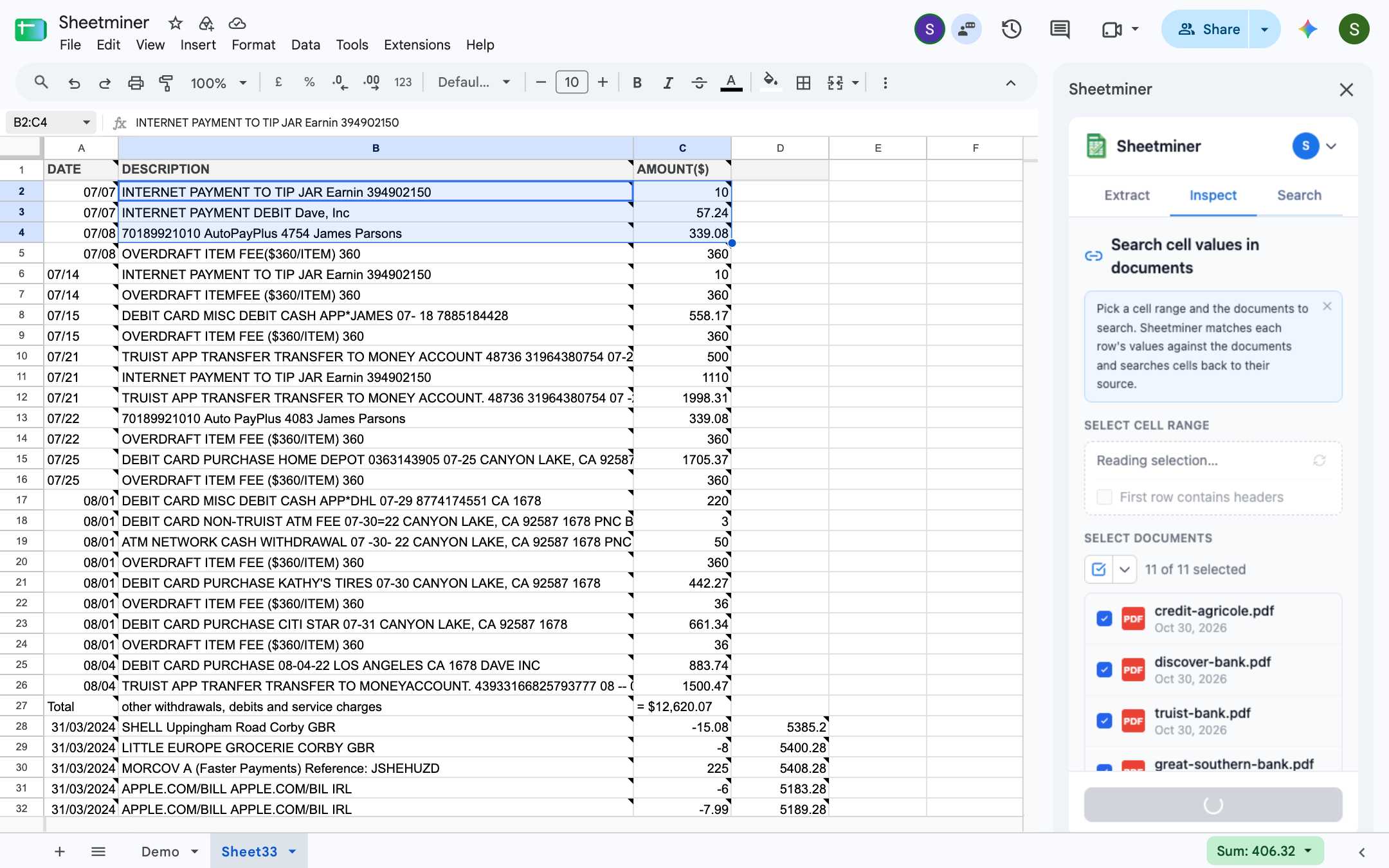
Select the cells to link, open the Search tab and choose the documents to search. Sheetminer picks up the selected range.
What should I see after confirming matches?
- A summary such as “10 cell(s) matched, 2 row(s) had no probable match.”
- Each matched cell now has a note with the document name and page, followed by an ID marked “(do not edit this ID)”.
- Each matched cell linked to its source. Select it, open the Inspect tab, and click Inspect selected cells to see the match in the document.
Click Search more cells to search another range, or Close.
How do I read the match scores?
Each match has a score from 0 to 100%. The review screen shows the key:
- ≥60 strong: the cell value and the document text agree closely.
- 21–59 likely: a probable match. Check it.
- ≤20 weak: a poor match. Check it before you confirm, or untick it.
A low score often means the value is written differently in the document, for example a different date format or rounding. It does not prove the value is wrong.
How do I choose a different source for a cell?
If a value was found in more than one place, the cell shows a dropdown. Each option reads “document name — “matched text” — score%”. Pick the one you want. Only one source is saved per cell. Click the eye icon (View source) to open the document with every proposed match in it highlighted.
What happens to cells with no match?
- Cells under No supporting document were not found in any selected document. They are listed so you can see them, and they are not linked.
- A line such as “2 row(s) had no match” counts rows where nothing was found.
How many pages does Search use?
None. Pages are counted once, when a document is processed after you upload it (see Pages & Usage). You can search processed documents as often as you like at no cost.
How do I fix Search messages?
| Message | What it means | What to do |
|---|---|---|
| No processed documents found. Upload and process documents before searching. | No document on this spreadsheet has finished processing. | Upload a document in the Extract tab and wait for processing to finish. |
| Select a range in the sheet | No range is selected. | Select the cells you want to link, then click Refresh selection. |
| No range selected. Select a range in the sheet first. | You clicked Search documents with no range selected. | Select a range in the sheet and try again. |
| Could not read selection | Sheetminer could not read the selected range. | Click Refresh selection, or select the range again. |
| Spreadsheet ID unavailable. Reload and try again. | Sheetminer could not identify this spreadsheet. | Close the sidebar and open it again from Extensions → Sheetminer → Open. |
| Search failed | The search did not complete. | Click Close and search again. |
| Failed to save source matches. Try again. | The links were not saved. | Click Confirm all again. |
| Can’t open “invoice.pdf”. Grant access to let this add-on view the file. | Sheetminer cannot open the document to show the match. | Click Grant Access and select the file. |
When should I use Search instead of a Snip?
Use Search when the data is already in your sheet, for example a transaction list imported from a bank export, and you want to link each value to the PDF statements. Use Text Snip, Table Snip or AI Snip to copy new data from a document.